Chapter 02
The Vocabulary of Critique
Talking about UI like an adult — seven words that change how you give design feedback.
Why a vocabulary matters
"I don't like it" is the most expensive sentence in product. It tells the designer something is wrong without giving them anything to act on. They revise based on a guess; you react to the guess; and three rounds later you've spent a week on a brief that should have taken a paragraph.
A small vocabulary changes this. Six or seven words let you point at what you mean instead of waving at it. "The hierarchy is inverted — the secondary action is more prominent than the primary" is a complete note. "The buttons feel weak" is not.
This chapter introduces seven critique terms that cover most of what you'll notice in a design review. Each comes with a definition, an example pair (one done well, one done poorly), and a one-sentence test for spotting it in your own product.
1. Hierarchy
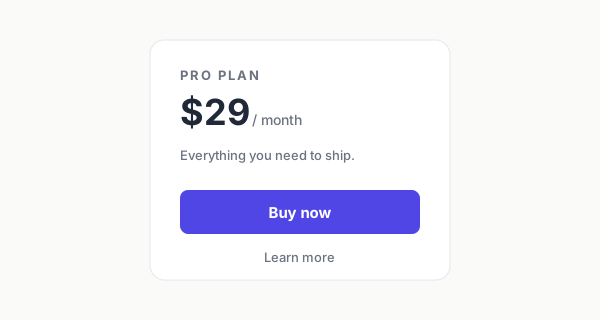
Visual hierarchy is the order in which the eye picks up elements on a screen. A good UI has clear hierarchy: the most important thing is the loudest, the next most important is quieter, and so on. A bad UI has flat hierarchy (everything equally weighted) or inverted hierarchy (secondary actions louder than primary).

Test for it
Squint at the screen. The first thing you notice should be the most important action. If the eye lands on a secondary CTA, an icon, or a decorative element, the hierarchy is broken.
2. Alignment
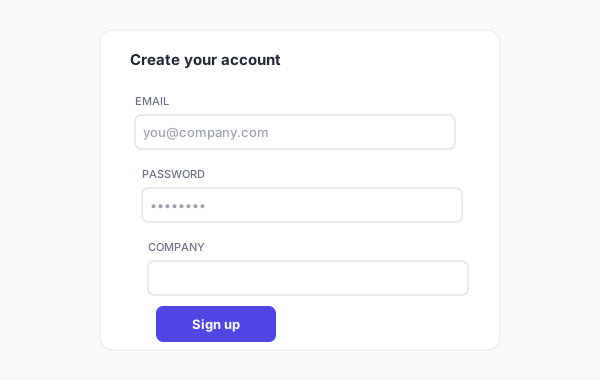
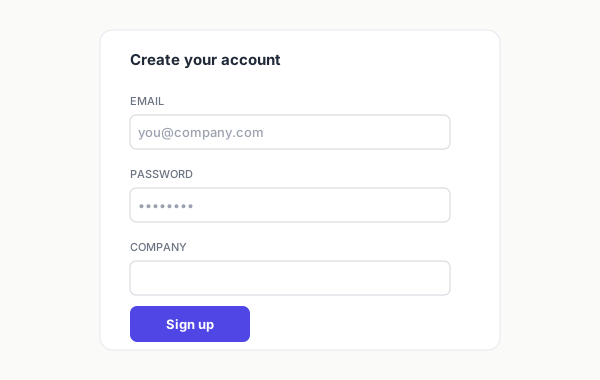
Alignment is whether elements sit on a shared invisible grid. Misaligned UIs feel "off" even when nothing is obviously wrong — eyes are extraordinarily sensitive to small inconsistencies in edges. Good alignment makes a screen feel calm and intentional; bad alignment makes it feel sloppy.
Test for it
Pick a vertical line — the left edge of the main content. Trace it down. Do the labels, fields, headings, and CTAs all share that line, or do they drift? Drift is misalignment.
3. Contrast
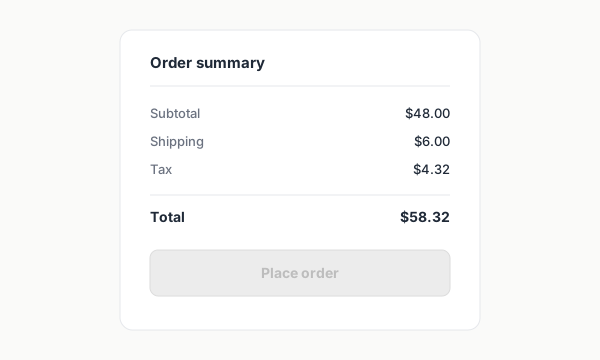
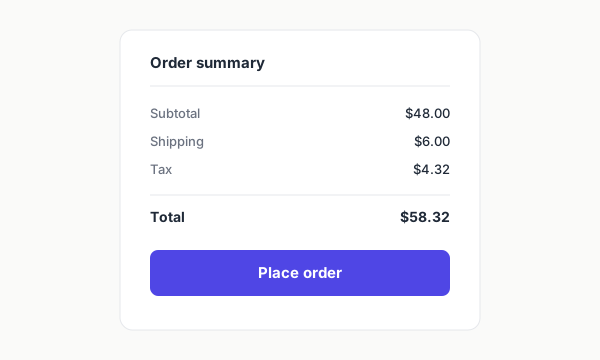
Contrast is the difference between elements — color, weight, size, or shape. High contrast makes things pop and easy to scan; low contrast makes them blend in. Two flavors matter for PMs: visual contrast (a primary button should look stronger than a secondary one) and color contrast (text against background must be legible — also an accessibility floor, covered properly in Chapter 7).
Test for it
Take a screenshot, drop the saturation to zero (any image editor or DevTools color filter). Can you still tell which is the primary action? If everything turns into the same gray, your UI is leaning on color alone — fragile to colorblind users, dim screens, and just bad design.
4. Balance
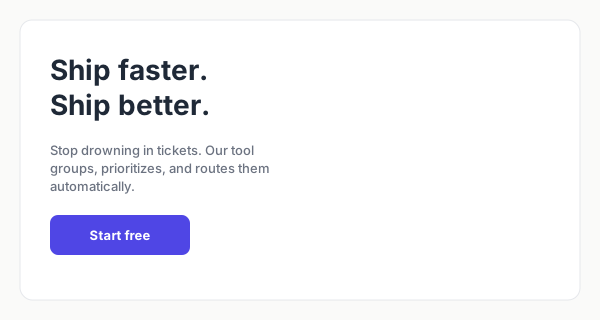
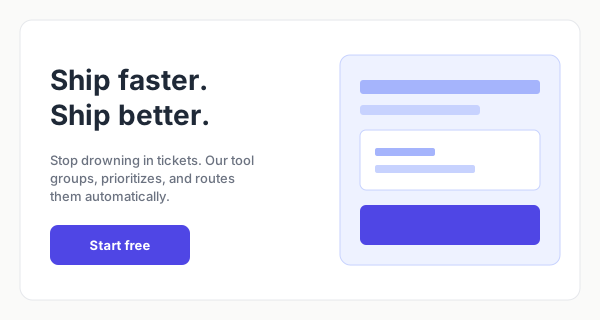
Balance is how visual weight is distributed across the screen. A balanced UI feels stable; an unbalanced one feels like it's going to tip over. Balance doesn't mean symmetry — asymmetric layouts can be balanced if the visual weight on one side matches the other (a single bold headline can balance a paragraph of body text).
Test for it
Mentally fold the screen down the middle. Does either half feel noticeably heavier? Heavy = lots of dark text, large images, dense blocks. If yes, the layout is asking the user to lean.
5. Density
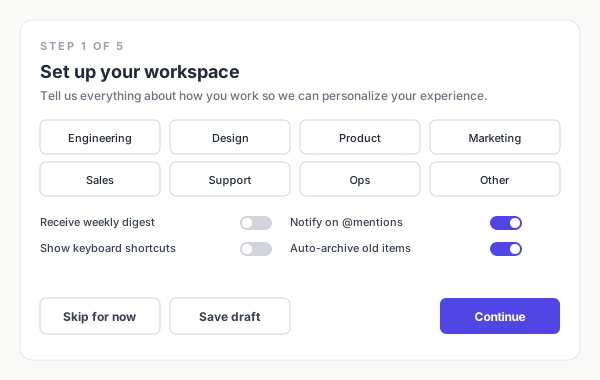
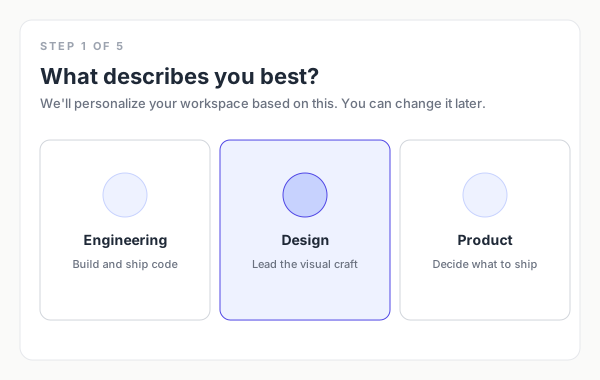
Density is how much information lives per square inch. High-density UIs (Linear, Bloomberg, professional dashboards) reward expert users with fast access. Low-density UIs (onboarding, marketing pages) guide novice users through one decision at a time. The wrong density for the audience is one of the most common PM-noticeable design failures.
Test for it
Ask: who's the user, and how many decisions are they making on this screen? A new user making one decision wants low density. A power user doing batch operations wants high density. The same screen, served identically to both, is wrong for at least one of them.
6. Affordance
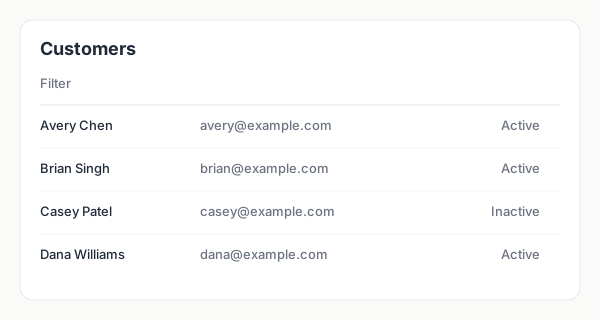
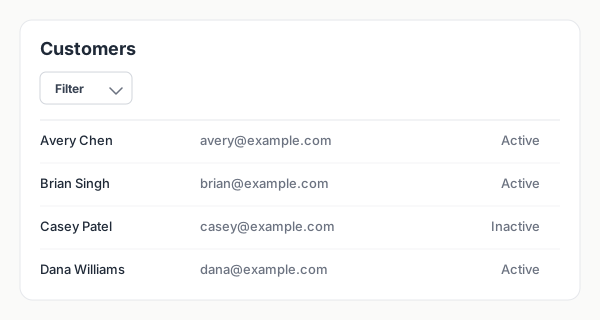
Affordance is whether an element looks like the thing it does. A button should look pressable. A link should look clickable. An input should look like it accepts input. Broken affordance — a button styled as a label, a label styled as a button — forces users to learn your UI by trial and error. Most "I clicked the wrong thing" feedback is an affordance complaint in disguise.
Test for it
Cover the labels. Can you still tell which elements are interactive and which are static? If a "click me" element looks identical to a piece of static text, the affordance is broken.
7. Rhythm
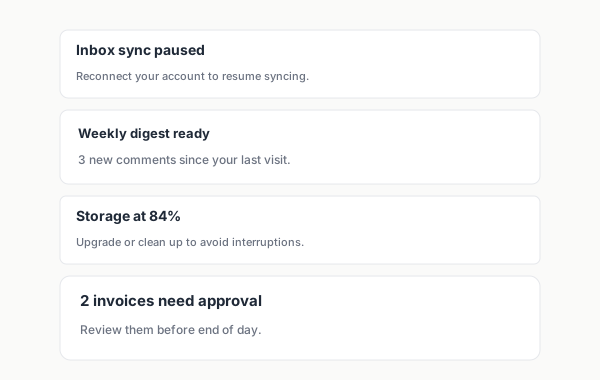
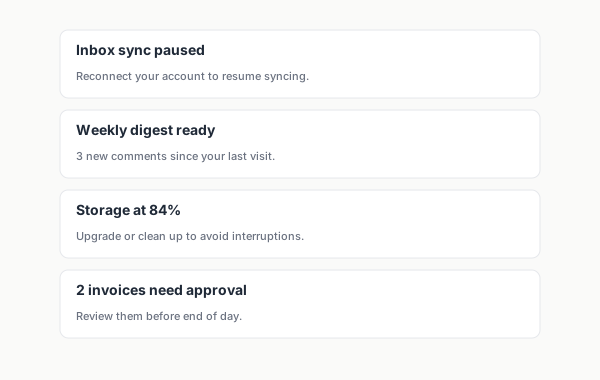
Rhythm is the consistency of repeated elements — spacing, size, color, type. Good rhythm makes a UI feel calm and predictable; the user's eye knows where to land next. Broken rhythm (one card with extra padding, one heading in a different size, one button with rounded corners while the rest are square) creates micro-friction that registers as "this product feels janky" without the user knowing why.
Test for it
Pick three repeated elements (e.g., three cards in a list). Do they have identical padding, font sizes, and corner radii? If one is different by 2px, the rhythm is broken — and the eye notices even when the brain doesn't.
Interactive — Critique Vocabulary Picker
Look at the UI below and identify which critique term best describes what's wrong. There may be more than one issue — pick the most prominent one.
PM Playbook — Questions to ask in design review
- What's the first thing the eye lands on? — should match the most important action (hierarchy)
- Does everything sit on a shared grid? — drift = sloppy (alignment)
- Is the primary action stronger than secondary ones? — visual weight should follow priority (contrast)
- Does the layout feel stable, or like it's tipping? — visual balance
- Is the density right for this user, on this screen? — onboarding ≠ dashboard (density)
- Does every interactive element look interactive? — labels-as-buttons are an affordance bug
- Are repeated elements actually identical? — broken rhythm registers as "janky" (rhythm)
- What did I just notice that I couldn't have named before this chapter? — vocabulary is the leverage